
Your owntag account supports two-factor authentication (2FA). This means that when you log in, you enter a code in addition to your password to get access to your owntag account.
The code is regenerated every 30 seconds by a so-called authenticator app on your smartphone or in your password manager. Alongside your password (the first “factor”), it forms the second factor of two-factor authentication.
Even if your password accidentally falls into the hands of attackers, this ensures they can’t access your owntag account — they’re missing the 2FA code.
2FA is an established standard, especially for IT infrastructure services like owntag, and we strongly recommend you use it.
If you don’t have an authenticator app yet, we recommend:
Setting up two-factor authentication in owntag
You set up two-factor authentication in your owntag account under “Settings” and “Two-Factor Authentication”:
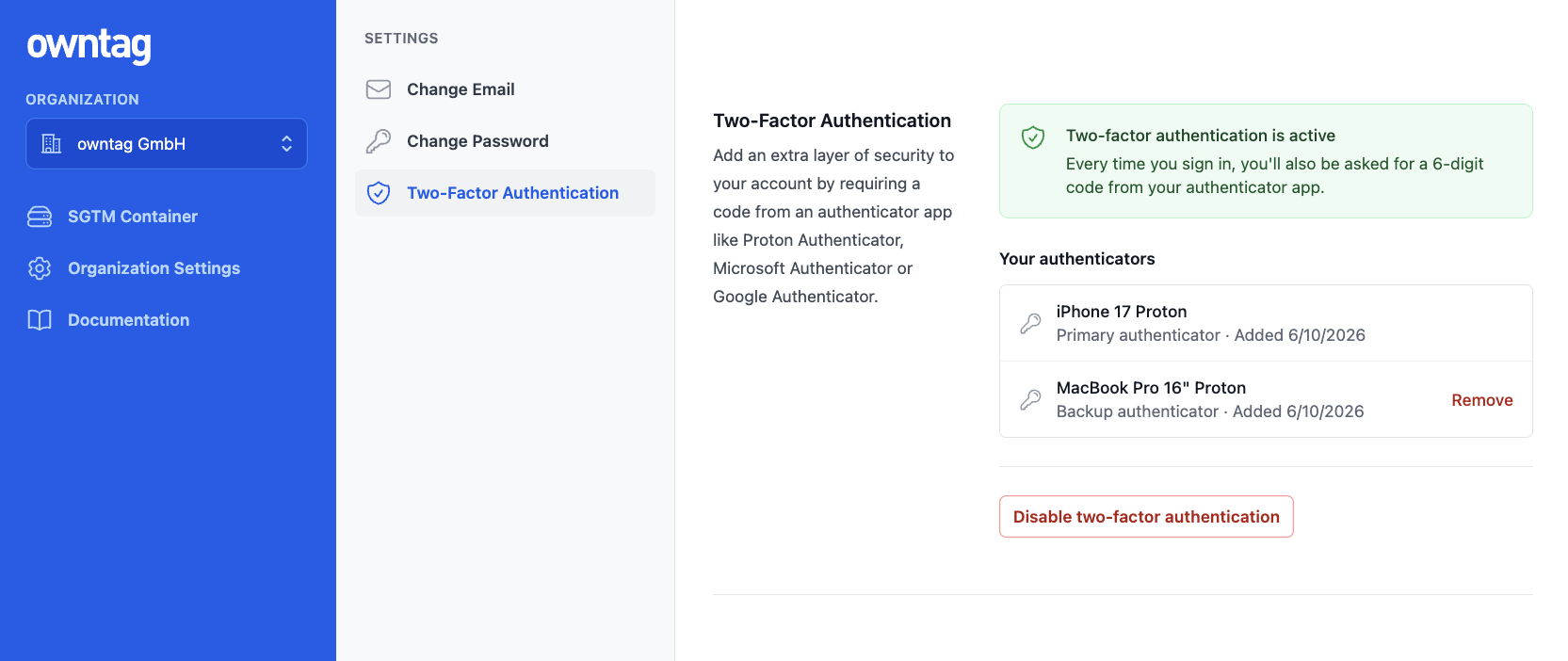
You can optionally set a name that makes it easier to remember which authenticator app holds the code.
To complete the setup, scan the displayed QR code once with your app using your smartphone camera, or enter the code manually.
Setting up a backup factor
If you lose access to your authenticator app and the 2FA codes it generates, you can no longer log in to your owntag account.
That’s why we strongly recommend setting up an additional backup factor. This can be a second smartphone, or a password manager app — many of them also support adding 2FA codes.
Regular backups of your smartphone help too. That way you’re on the safe side even if you ever lose your smartphone.