
When your Server Side GTM container runs on owntag, it doesn’t have built-in access to your Google Cloud project. A Google Service Account bridges that gap — it lets your SGTM container authenticate with Google Cloud Platform services like BigQuery and Firestore, directly from within your tags and variables.
This guide walks you through creating a service account, configuring the right permissions, and connecting it to your owntag container.
What does a Google Service Account unlock?
Server Side GTM has built-in APIs for BigQuery and Firestore that any tag or variable template can use. Many community templates depend on these APIs. Without a connected service account, those APIs simply don’t work — with one, they unlock powerful capabilities:
| Integration | What it enables |
|---|---|
| BigQuery | Stream raw event data directly into your data warehouse, bypassing GA4’s sampling and data limits. Build custom analytics pipelines, store conversion data for offline matching, or feed Looker Studio dashboards. |
| Firestore | Enrich events in real time by looking up customer data (e.g. hashed emails for Meta CAPI), manage session state, store configuration values, or maintain counters for value-based bidding. |
| Google Sheets | Read from spreadsheets as lightweight lookup tables — useful for campaign configuration, product margin data, or small reference lists. |
| Vertex AI | Make real-time predictions from ML models (e.g. predicted lifetime value for smart bidding, lead scoring, or fraud detection). |
| Pub/Sub | Publish messages to trigger downstream pipelines — CRM updates, notification systems, or data validation workflows. |
BigQuery and Firestore are by far the most common use cases. If you’re just getting started, focus on those two.
The service account is only needed because your SGTM container runs on owntag’s infrastructure, not inside your own Google Cloud project. If it were running on Google Cloud directly (e.g. Cloud Run), authentication would happen automatically. The JSON key file is what enables the same authentication from an external environment.
Step 1: Create a Service Account in Google Cloud
You need a Google Cloud Platform project. If you don’t have one yet, create one at console.cloud.google.com.
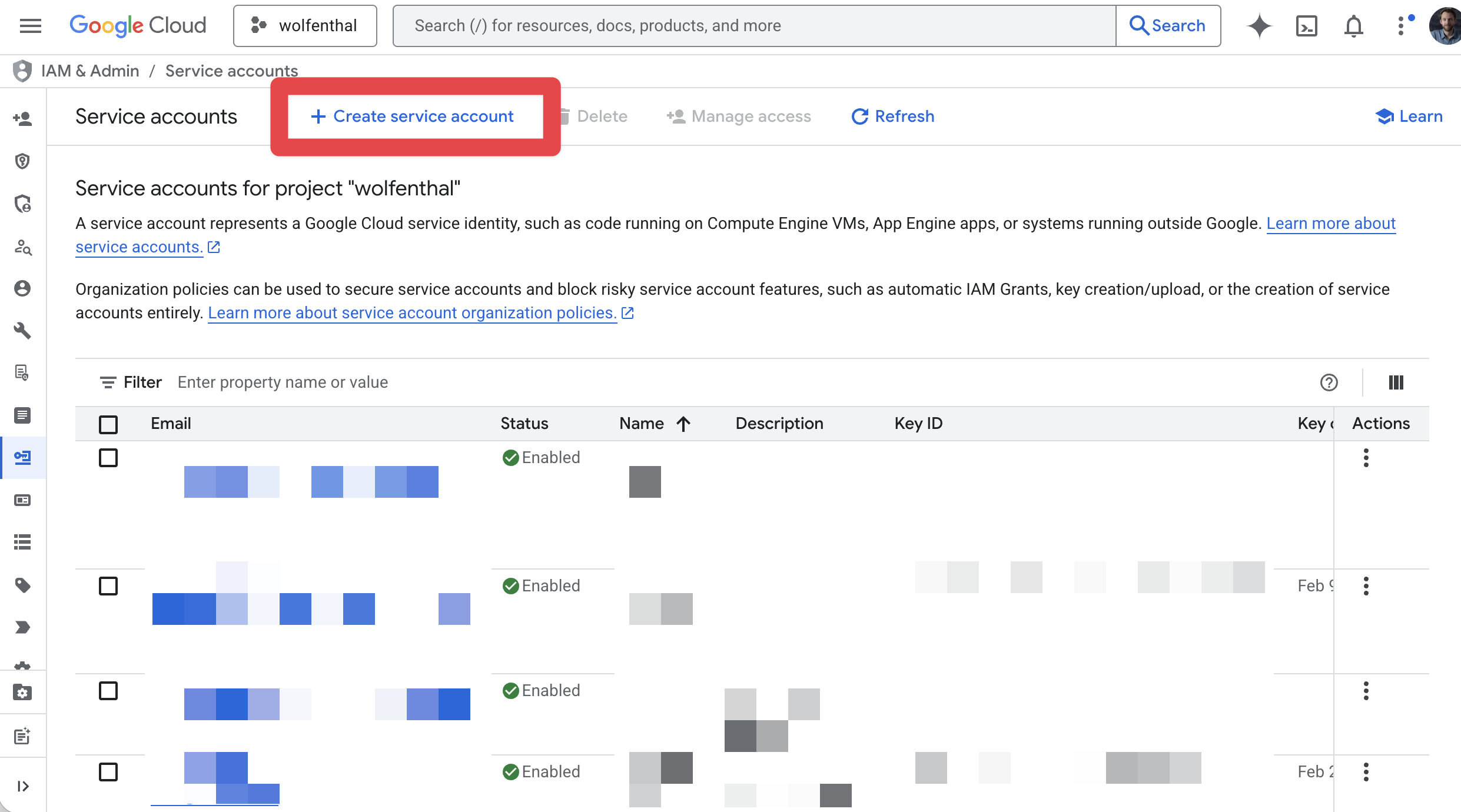
- In the Google Cloud Console, navigate to IAM & Admin → Service Accounts.
- Click Create Service Account.
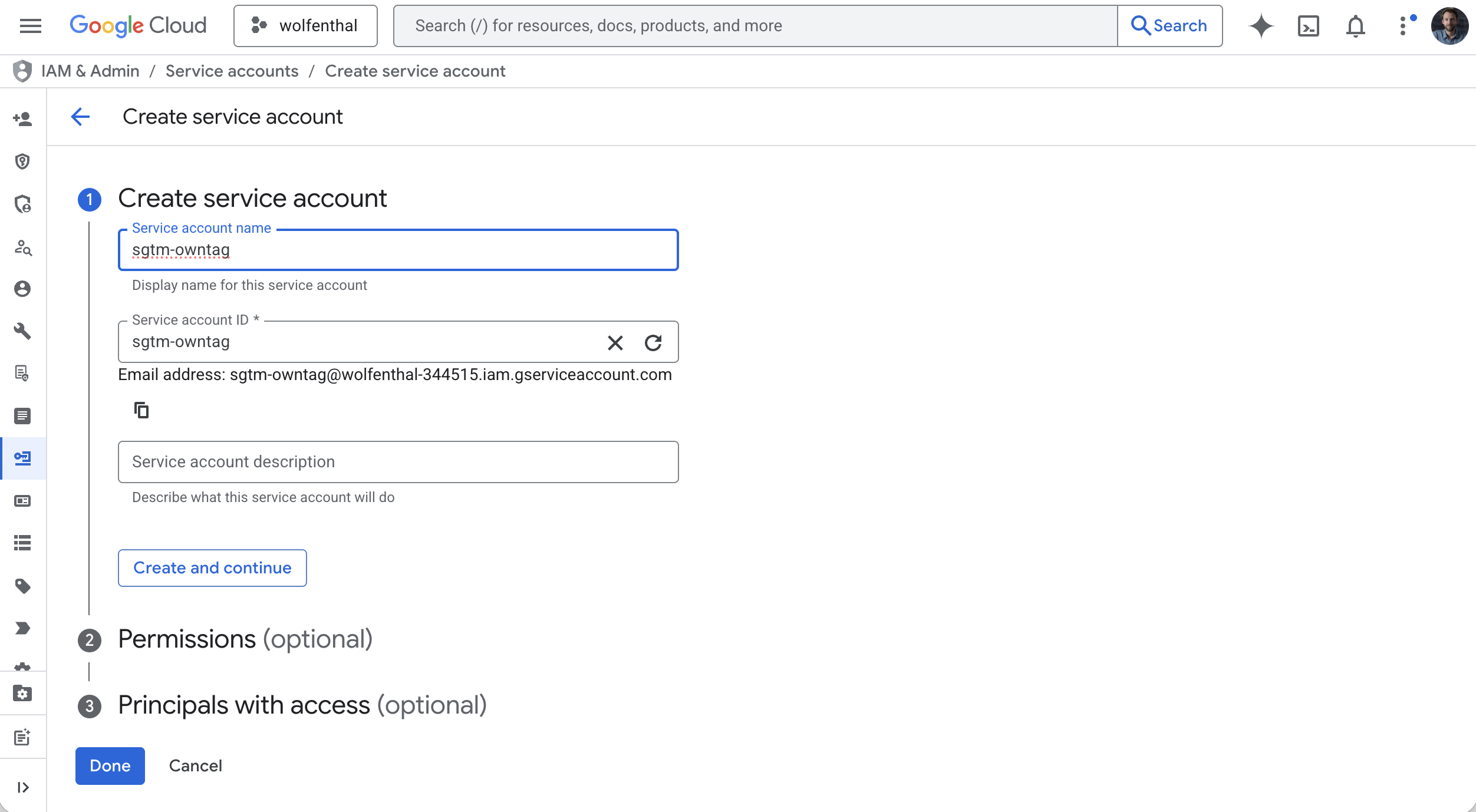
- Enter a descriptive name, for example
sgtm-owntag. The email address is generated automatically. - Click Create and Continue.
Step 2: Assign IAM Roles
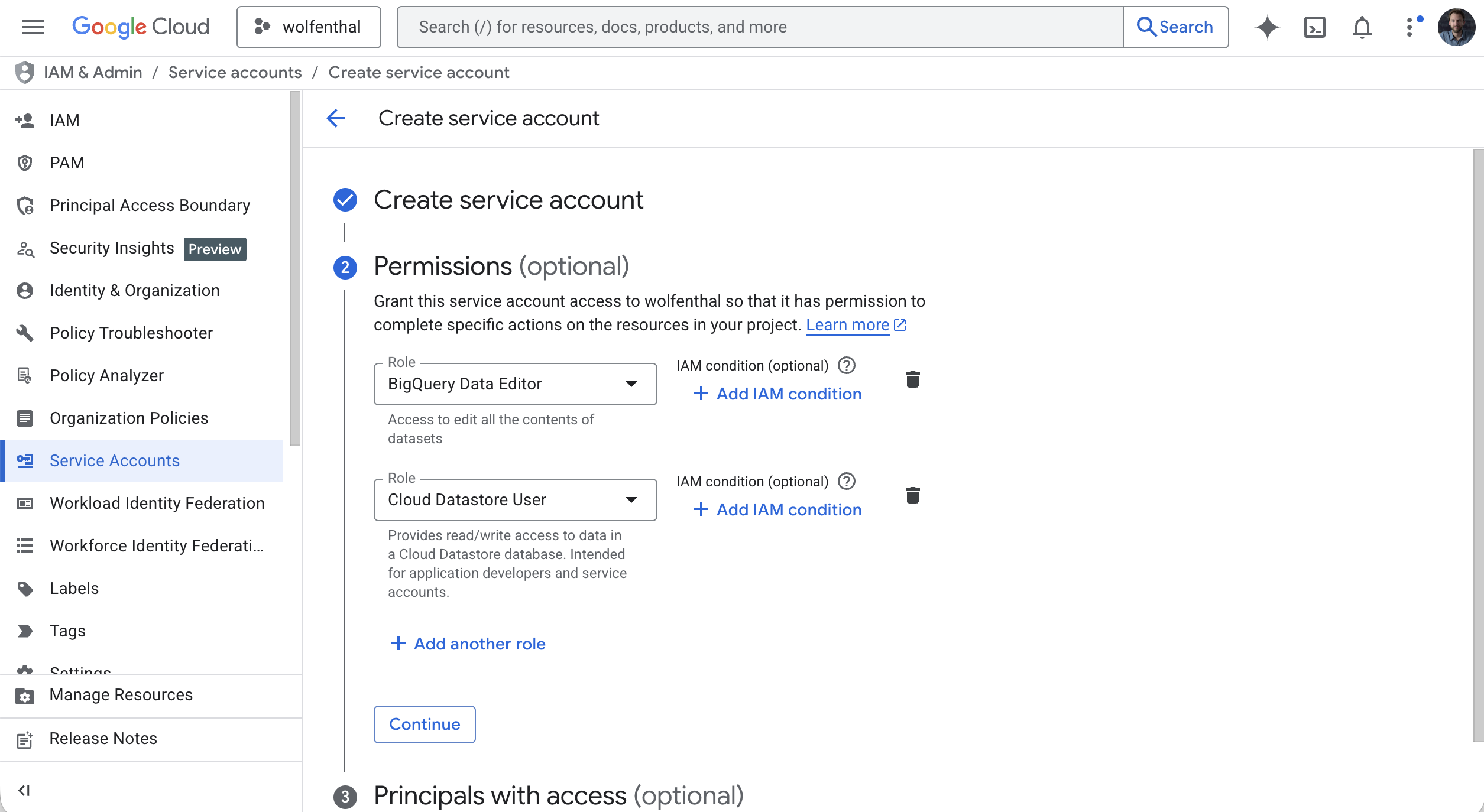
In the next step, Google asks you to grant roles to the service account. The roles determine which Google Cloud services your SGTM container can access.
Only grant the roles you actually need. Here are the most common ones:
| What you want to do | Required IAM role |
|---|---|
| Write data to BigQuery | BigQuery Data Editor |
| Read and write Firestore documents | Cloud Datastore User |
| Run BigQuery queries (e.g. via custom templates) | BigQuery Job User |
For Google Sheets, no IAM role is needed — instead, you share the spreadsheet directly with the service account’s email address (just like sharing with a colleague).
Select the roles you need, then click Continue and Done.
You can always add or change roles later under IAM & Admin → IAM in the Google Cloud Console.
Step 3: Create and Download the JSON Key
- In the service accounts list, click on the service account you just created.
- Go to the Keys tab.
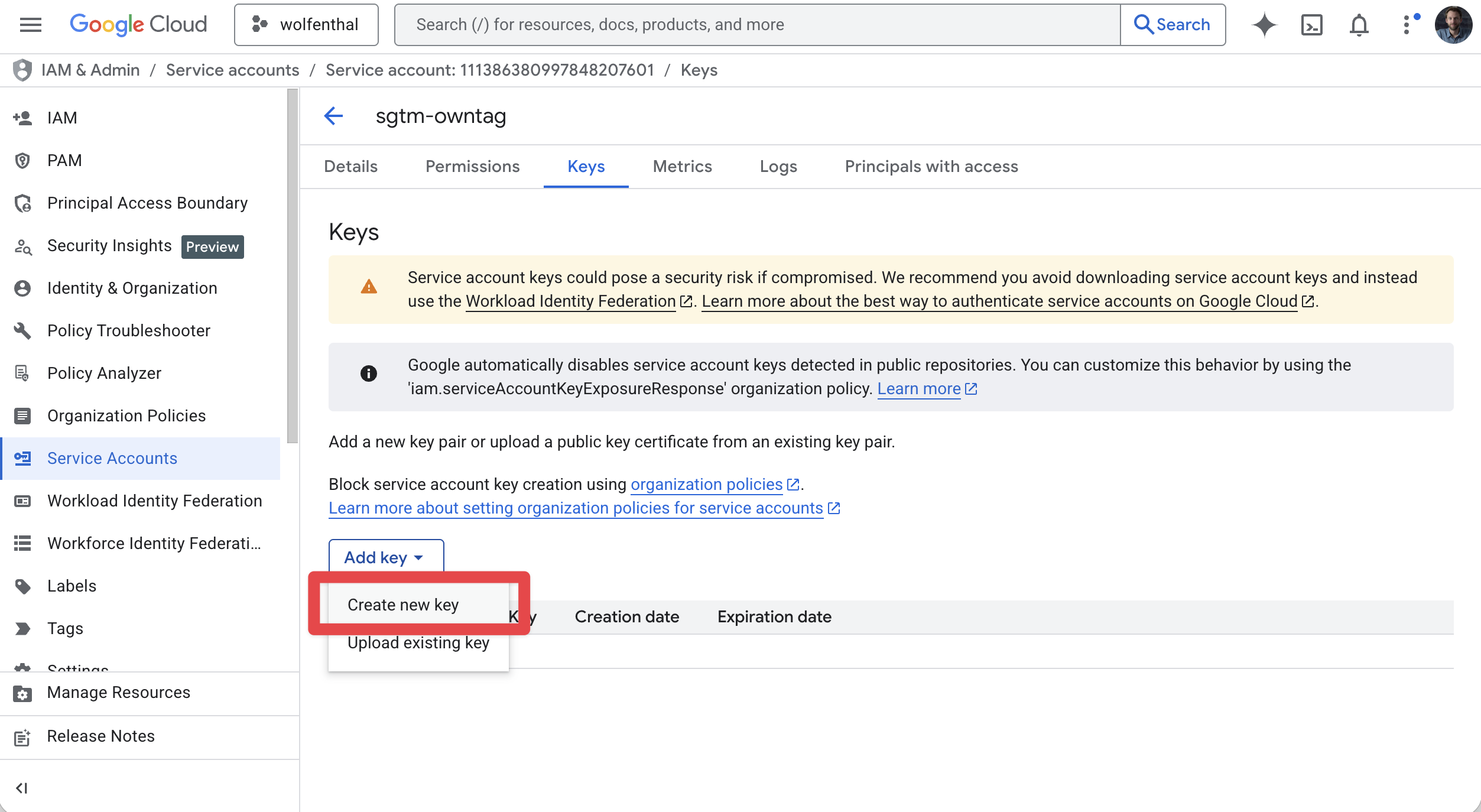
- Click Add Key → Create new key.
- Select JSON as the key type and click Create.
- The JSON key file downloads to your computer automatically.
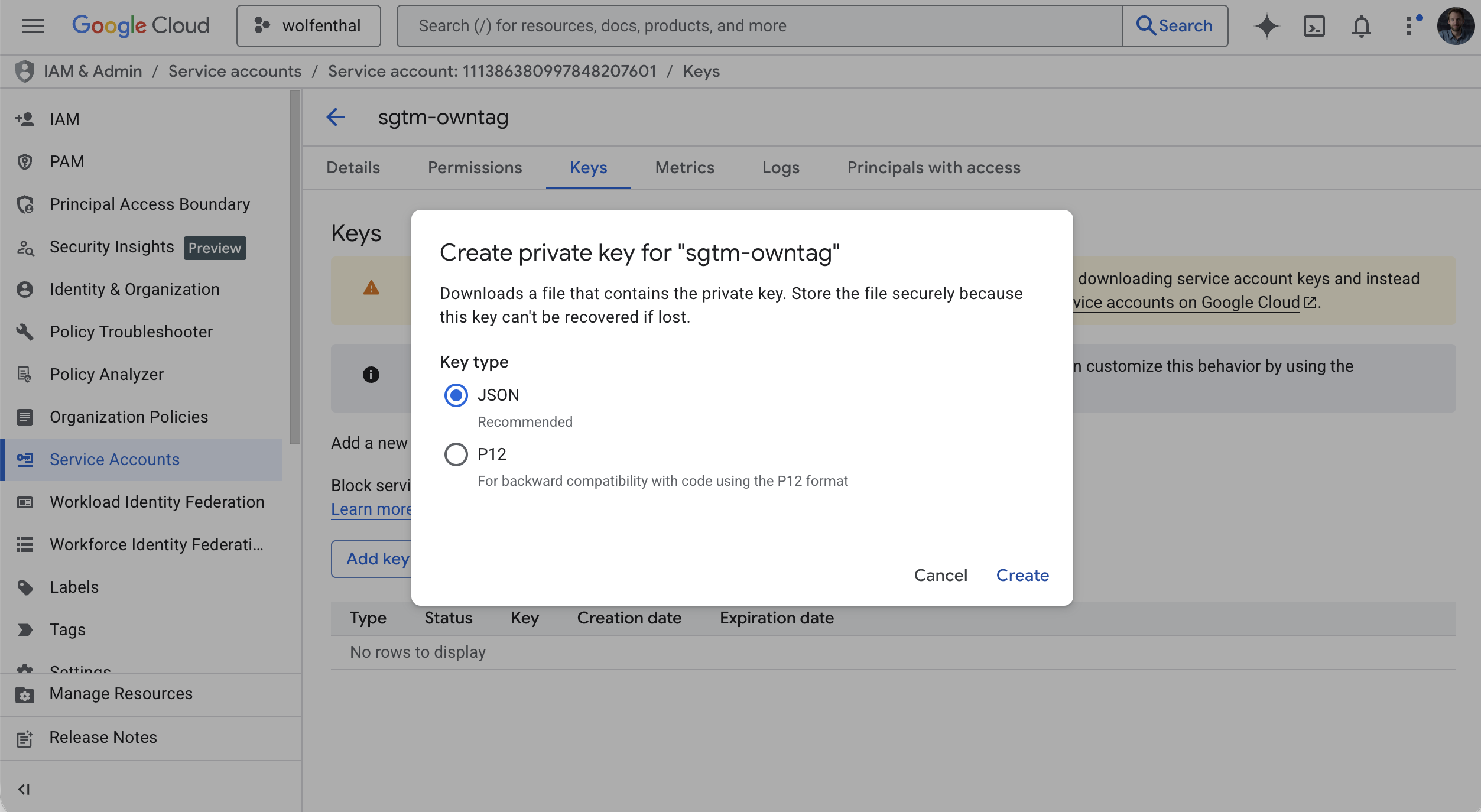
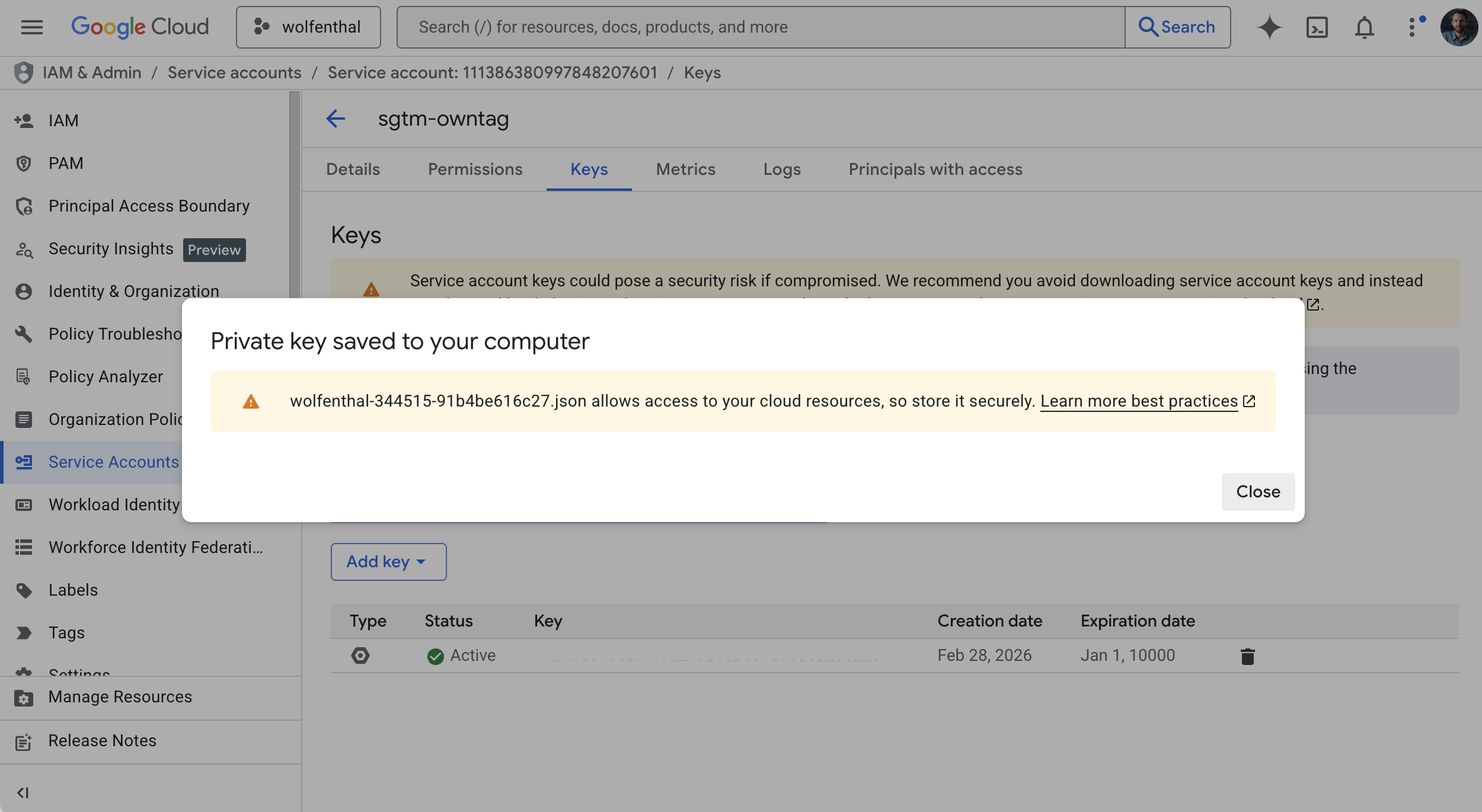
Keep this file safe. The JSON key cannot be re-downloaded — if you lose it, you’ll need to create a new key.
Step 4: Enable the Required APIs
Each Google Cloud service requires its API to be enabled in your project. Go to APIs & Services → Library in the Google Cloud Console and enable the APIs you need:
- BigQuery API — if you want to stream data into BigQuery
- Cloud Firestore API — if you want to use Firestore for data enrichment or lookups
The API name in the search bar is usually enough to find them quickly. Click Enable on each one.
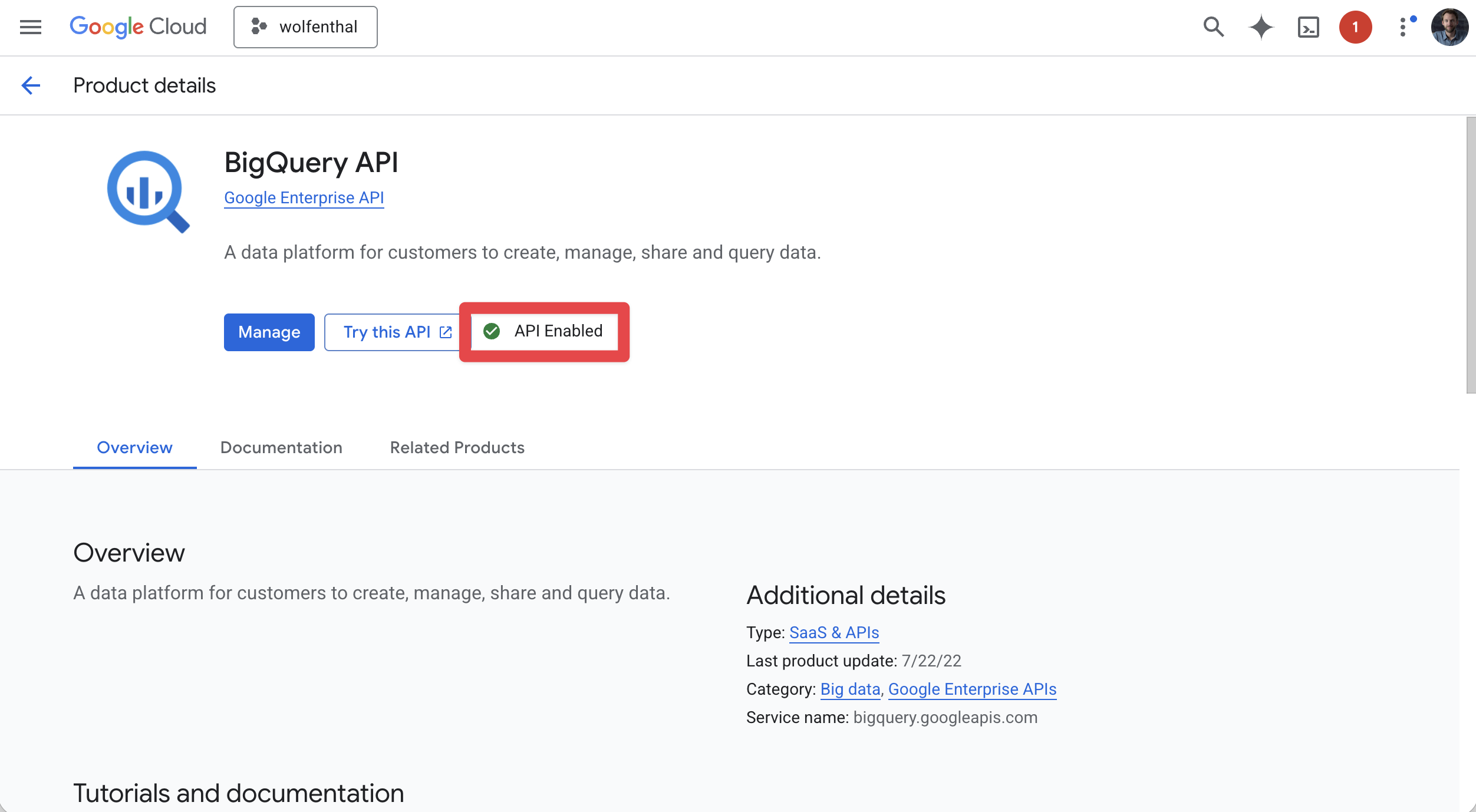
If you skip this step, your SGTM tags and variables will get authentication errors when trying to access the service. The error messages in SGTM’s preview mode usually make it clear which API needs to be enabled.
Step 5: Upload the Key to owntag
- Log in to the owntag Console at console.owntag.eu.
- Open the container you want to connect.
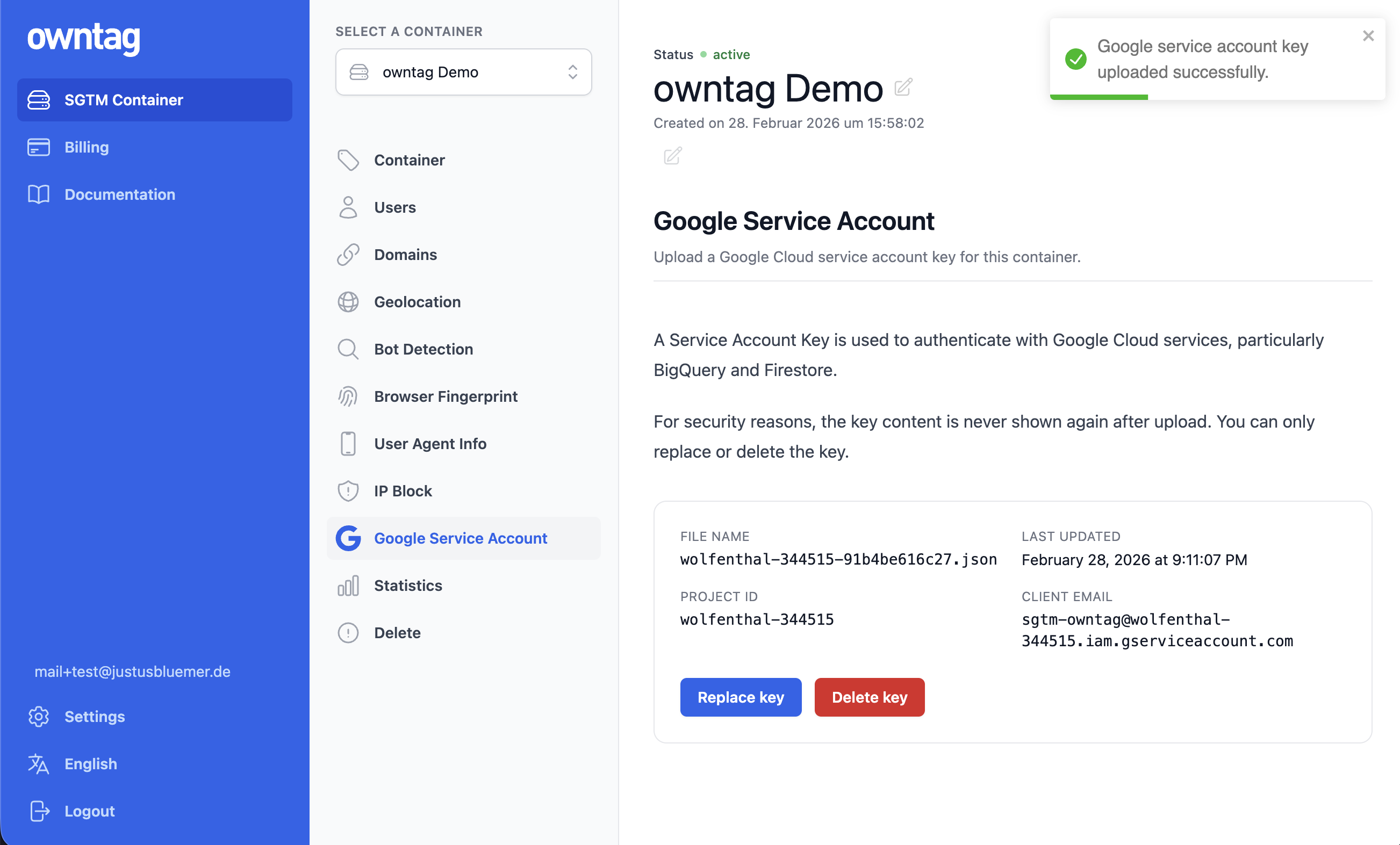
- Click Google Service Account in the sidebar.
- Drag and drop your JSON key file into the upload area — or click Select JSON file to choose it from your device.
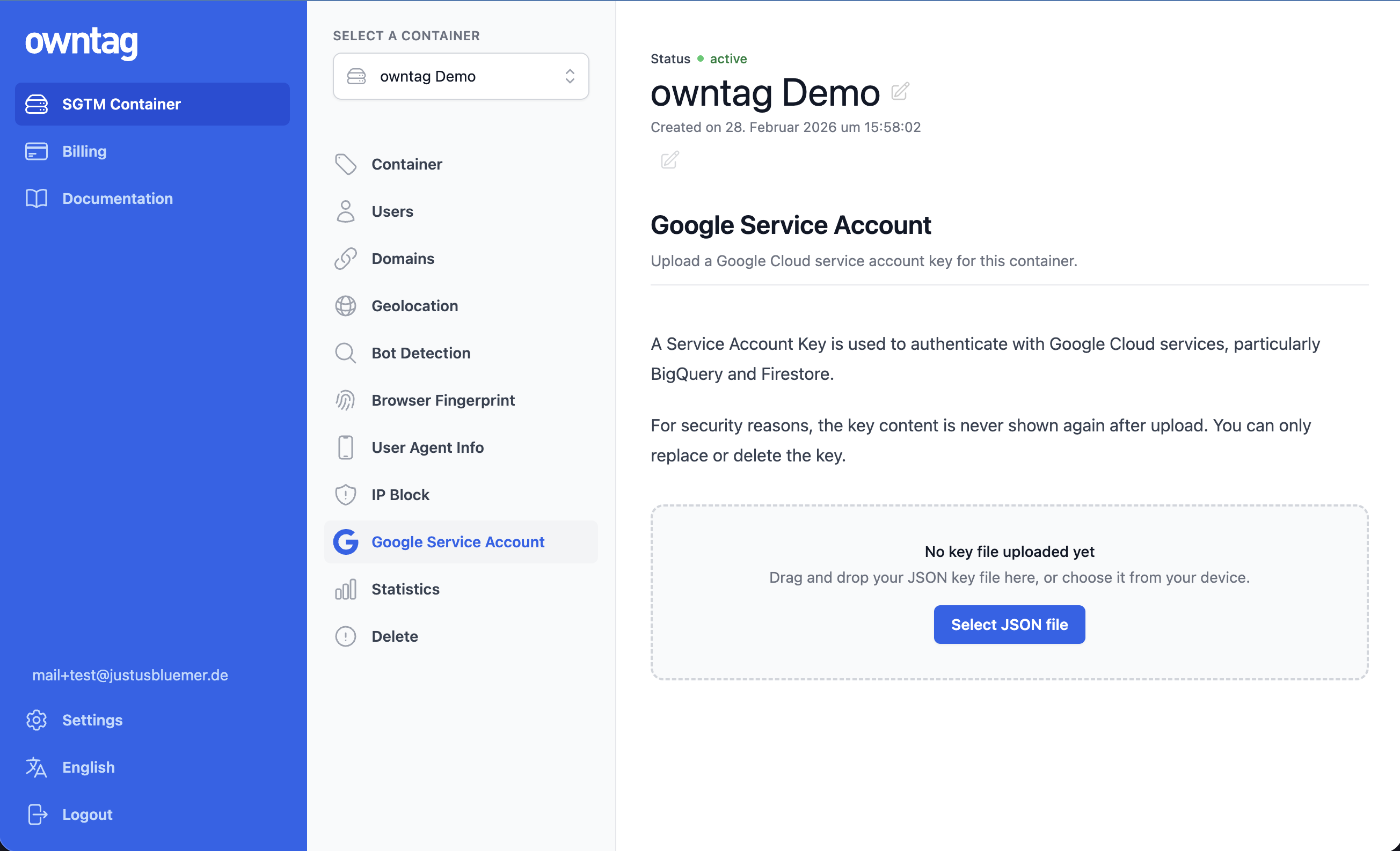
That’s it. owntag validates the file, securely stores it, and mounts it into your SGTM container. The change takes effect within seconds.
After uploading, you’ll see the key’s metadata — the file name, your Google Cloud project ID, and the service account’s email address. The actual key content is never displayed.
Managing Your Key
You can replace the key at any time by uploading a new JSON file. This is useful when rotating credentials — create a new key in Google Cloud, upload it to owntag, verify everything works, then delete the old key in Google Cloud.
To remove the service account entirely, click Delete key. Your SGTM container will continue to run normally, but BigQuery, Firestore, and other Google Cloud integrations will stop working.
Verifying the Integration
The easiest way to verify everything works is through SGTM’s Preview Mode:
- In Google Tag Manager, open your Server container and click Preview.
- Set up a tag or variable that uses BigQuery or Firestore (e.g. the built-in Firestore Lookup variable or a BigQuery tag from the template gallery).
- Trigger an event and check the debug panel.
If the service account is configured correctly, you’ll see successful reads or writes. If something is wrong, the debug panel typically shows a clear error — most commonly a missing API (go back to Step 4) or insufficient permissions (go back to Step 2).
Use Case: Streaming Events to BigQuery
BigQuery is one of the most popular reasons to set up a service account. With it, you can stream every event that arrives at your SGTM container directly into BigQuery — giving you access to raw, unsampled data that you fully control.
What you need:
- A BigQuery dataset and table in your Google Cloud project (create them in the BigQuery Console)
- The BigQuery Data Editor role on your service account
- The BigQuery API enabled in your project
- A tag template that writes to BigQuery (e.g. Google’s GA4-to-BigQuery tag from the template gallery)
In your Server GTM container, install the tag template, configure it with your dataset and table IDs, and set up a trigger to fire on the events you want to capture. Every matched event will be streamed into your BigQuery table in near real-time.
Use Case: Enriching Events with Firestore
Firestore lets your SGTM container look up data in real time and add it to outgoing events. A common use case: storing hashed customer emails in Firestore and looking them up on each event to improve match quality for Meta Conversions API (CAPI) or Google Ads Enhanced Conversions.
What you need:
- A Firestore database in Native mode in your Google Cloud project
- The Cloud Datastore User role on your service account
- The Cloud Firestore API enabled in your project
Server GTM has a built-in Firestore Lookup variable — no template installation needed. Configure it with a collection path and document ID, and it returns the document data for use in your tags.
Security Best Practices
A service account JSON key grants persistent access to your Google Cloud resources. Handle it carefully:
- Least privilege. Only assign the IAM roles your SGTM container actually needs. Never use broad roles like “Editor” or “Owner”.
- One service account per purpose. Create a dedicated service account for owntag instead of reusing an existing one.
- Rotate keys periodically. Create a new key, upload it to owntag, verify it works, then delete the old key in Google Cloud.
- Don’t share the file. Avoid sending the key file via email or messaging. If you need to hand it off, use a secure channel.
When you upload your key to owntag, the key file is stored in a dedicated secret manager and mounted into your SGTM container at runtime. owntag does not use your key for any purpose other than making it available to your container. That said, the principle of least privilege is always a good idea — grant only the permissions you need.
Data Privacy
The Google Service Account connects your SGTM container to your own Google Cloud project. The data flows directly between your container and Google Cloud — owntag does not intercept, store, or process any of the data that travels through this connection.
Your SGTM container continues to run on owntag’s European infrastructure. The service account simply enables your container to authenticate with Google Cloud APIs. Where the data ultimately ends up (e.g. a BigQuery dataset in the EU region europe-west3) is entirely determined by your Google Cloud project configuration.
Quick Reference: IAM Roles
| Use case | IAM role | Role ID |
|---|---|---|
| Write data to BigQuery | BigQuery Data Editor | roles/bigquery.dataEditor |
| Run BigQuery queries | BigQuery Job User | roles/bigquery.jobUser |
| Read/write Firestore documents | Cloud Datastore User | roles/datastore.user |
| Read Google Sheets | Share the sheet with the SA email | — |
| Vertex AI predictions | Vertex AI User | roles/aiplatform.user |
| Publish to Pub/Sub | Pub/Sub Publisher | roles/pubsub.publisher |
| Access secrets | Secret Manager Secret Accessor | roles/secretmanager.secretAccessor |
Quick Reference: APIs to Enable
| Service | API name in GCP |
|---|---|
| BigQuery | BigQuery API |
| Firestore | Cloud Firestore API |
| Google Sheets | Google Sheets API |
| Vertex AI | Vertex AI API |
| Pub/Sub | Cloud Pub/Sub API |