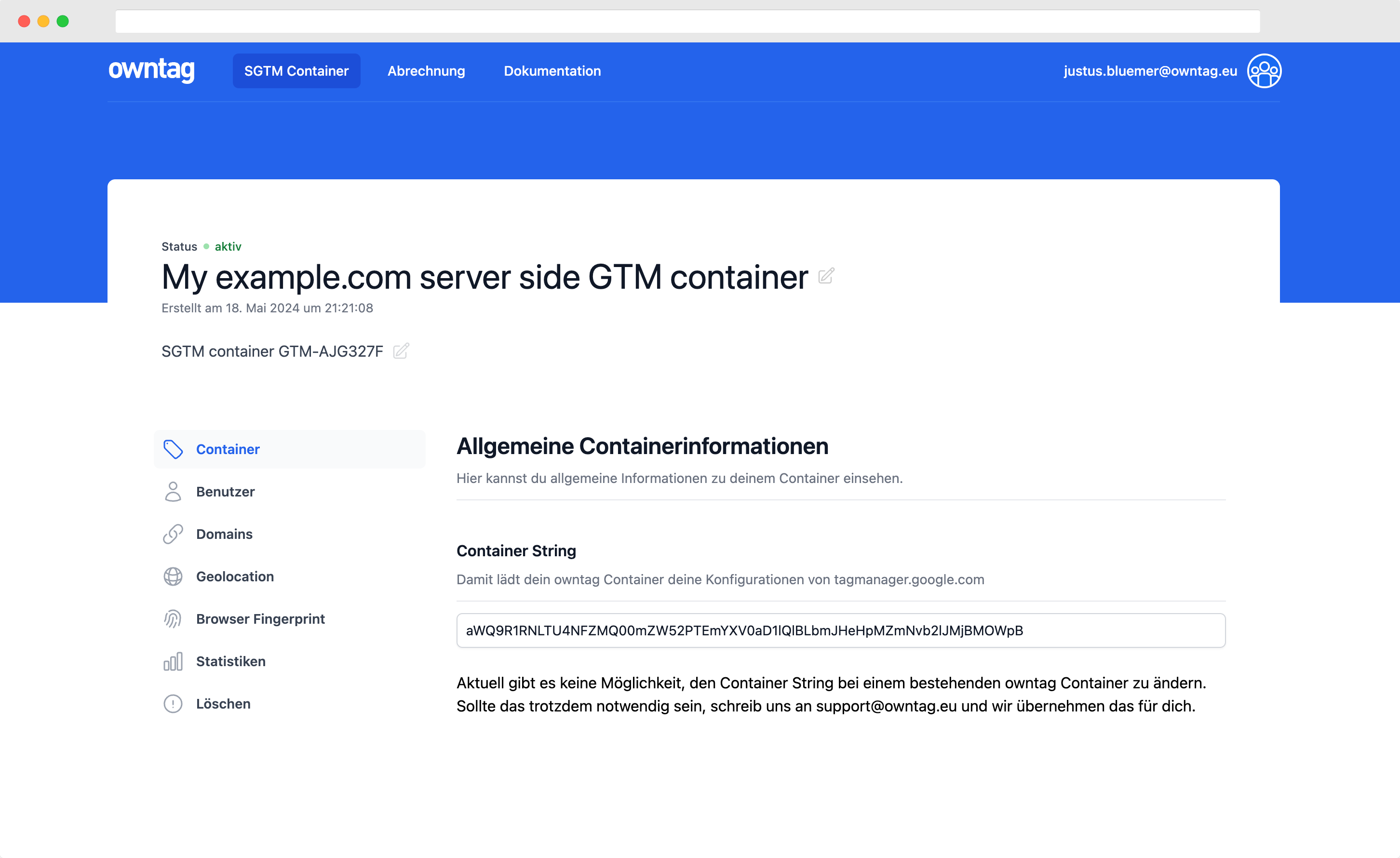

The Google Sheets Lookup variable template lets you use a Google Sheet as a lookup table inside your Server-Side Google Tag Manager container. Given a key value (such as a product SKU), it searches for a matching row in your sheet and returns the value from another column (such as a profit margin or category).
Prerequisites
Before you can use this template, you need a Google Service Account connected to your SGTM container. The service account allows the server container to authenticate with the Google Sheets API.
Setting Up the Google Service Account in owntag
If you’re using owntag to host your Server-Side GTM container, you can upload your Google Service Account key directly in the owntag console. Navigate to your container and select Google Service Account from the sidebar menu:
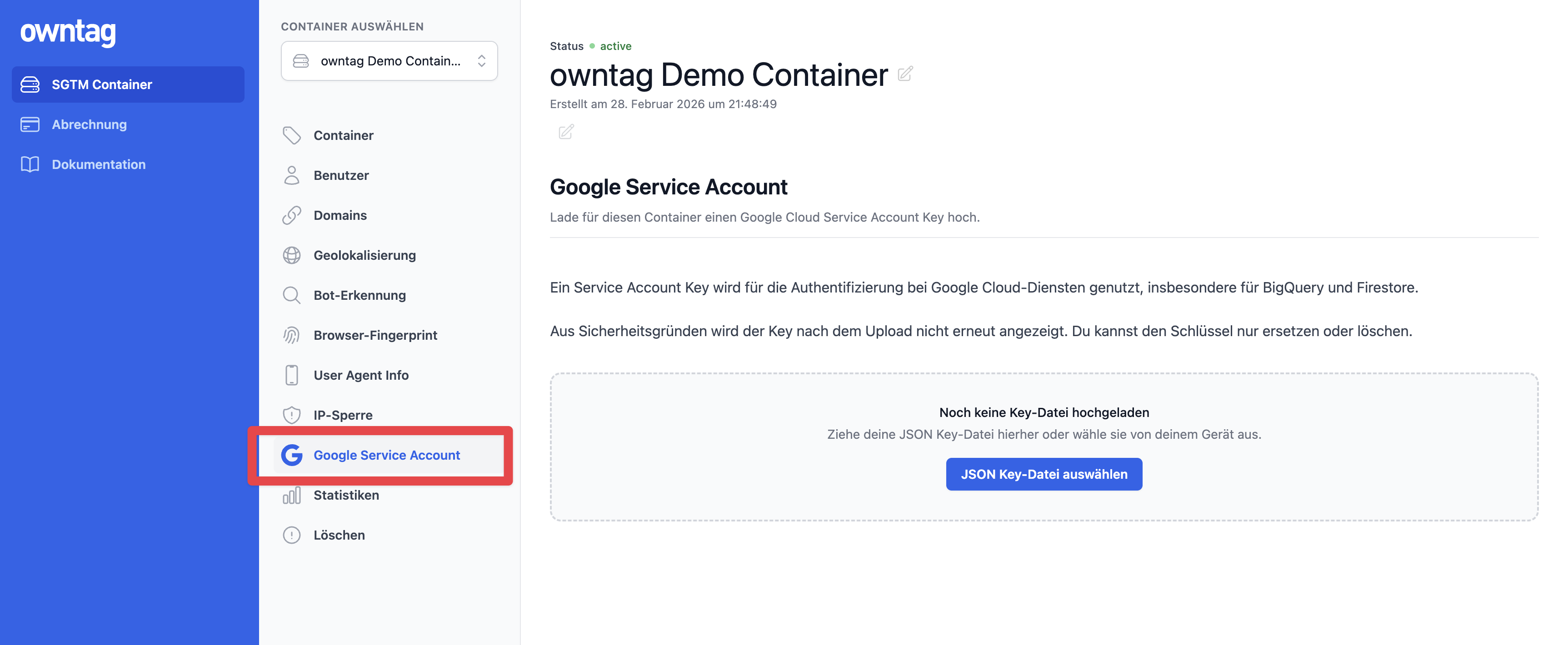
For detailed instructions on how to create a service account in the Google Cloud Platform and which permissions it needs, refer to the owntag documentation on Google Service Accounts.
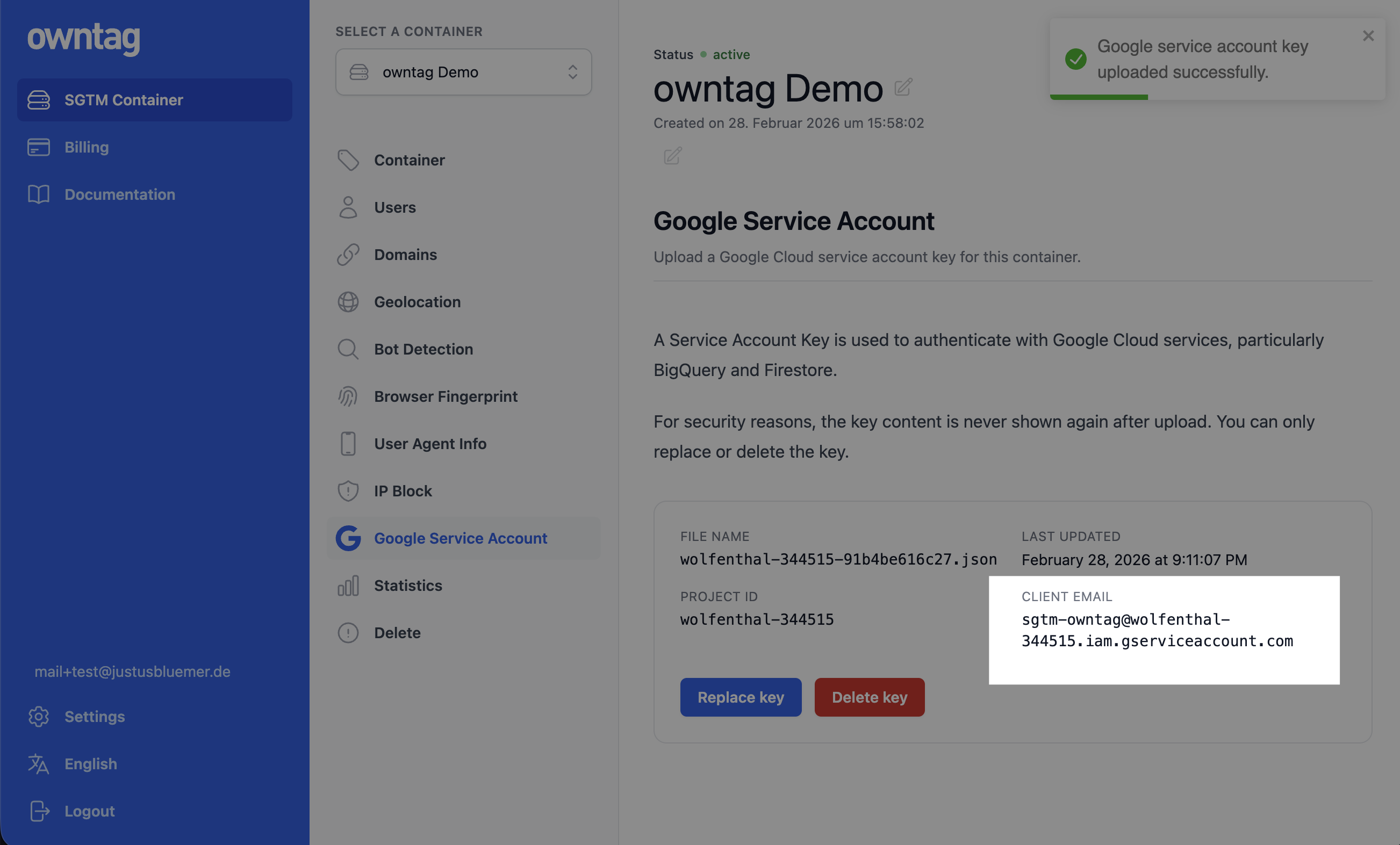
Once the service account key is uploaded, the owntag console shows the Client Email address of the service account. You’ll need this email address in the next step.
Preparing Your Google Sheet
Create a Google Sheet with at least two columns: one for the key you want to look up (e.g. a product SKU) and one for the value you want to return (e.g. a profit margin). The first row should contain column headers.
Here’s an example of a simple product profit sheet:
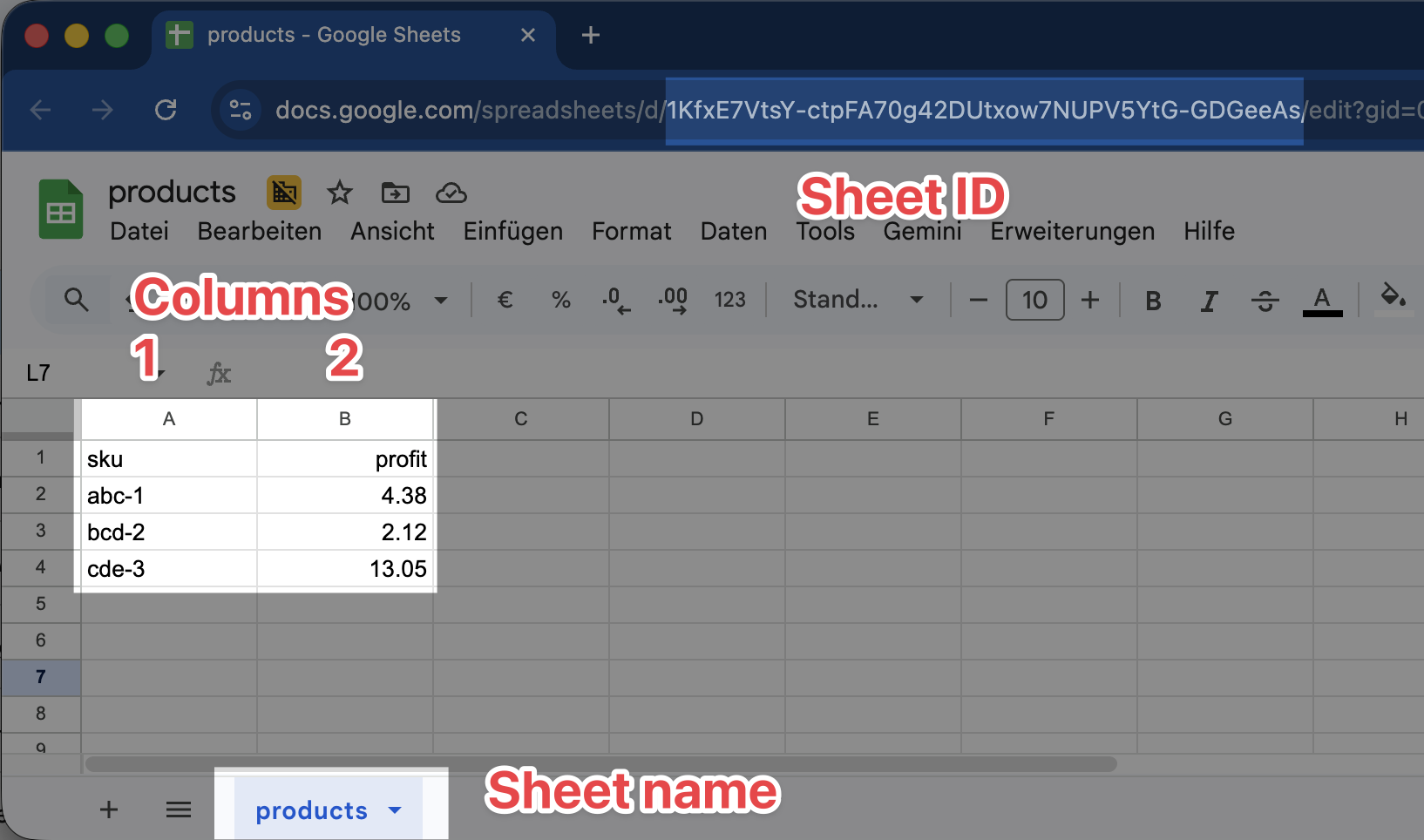
Take note of the following values — you’ll need them when configuring the variable:
- Spreadsheet ID: The long string in the URL between
/d/and/edit, e.g.1KfxE7VtsY-ctpFA70g42DUtxow7NUPV5YtG-GDGeeAs - Sheet name: The name of the tab at the bottom of the spreadsheet, e.g.
products - Key Column number: The column that contains the lookup key (1 = column A, 2 = column B, etc.)
- Return Column number: The column that contains the value you want returned
Sharing the Sheet with Your Service Account
The Google Sheet must be shared with your service account, just as if it were a real user. Open the sharing settings of your spreadsheet and add the service account’s Client Email address (the one shown in the owntag console) as an editor or viewer.
Importing the Template
Download the template file (template.tpl) from the GitHub repository.
In your Google Tag Manager Server-Side container, go to the Templates section. Under Variable Templates, click New and import the downloaded file.
Configuring the Variable
After importing the template, create a new variable in the Variables section of your server container. Select the owntag Google Sheets Lookup template as the variable type.
Fill in the fields using the values you noted from your Google Sheet:
- Spreadsheet ID: The ID from the sheet URL
- Sheet Name: The tab name in your spreadsheet
- Lookup Value: The value to search for in the key column — typically a GTM variable like
{{ecommerce.0.item_id}}that resolves to a product SKU or ID at runtime - Key Column (number): The column number to search in (e.g.
1for column A) - Return Column (number): The column number whose value to return (e.g.
2for column B)
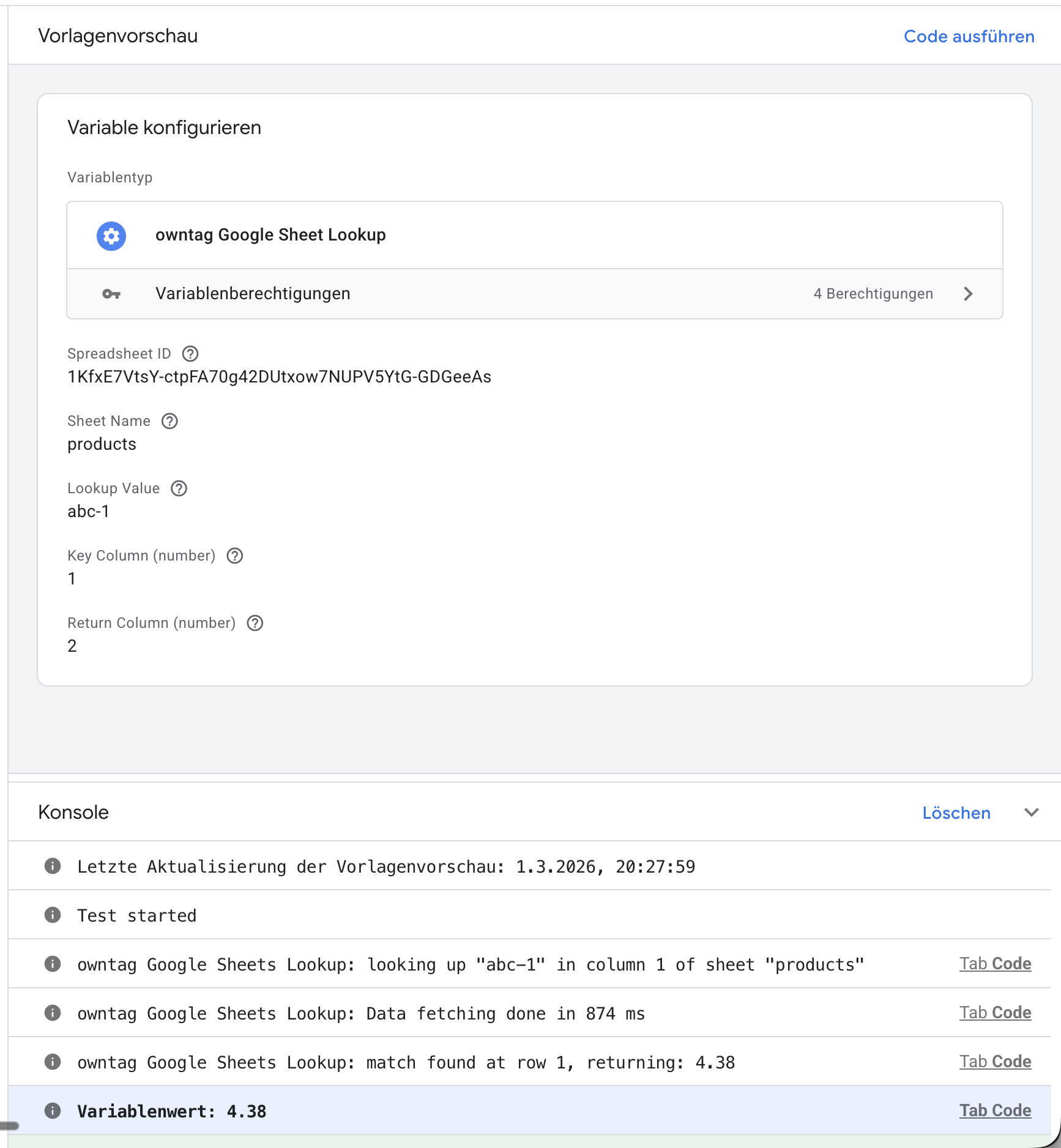
In the screenshot above, the variable is configured to look up the value abc-1 in column 1 of the sheet products, and return the corresponding value from column 2. The console at the bottom confirms a match was found at row 1, returning the profit value 4.38.
In practice, you would replace the hardcoded lookup value with a GTM variable that dynamically resolves to the product’s SKU or ID, such as {{ecommerce.0.item_id}}.
Return Type
By default, the variable returns a string. If you need a numeric value (for example, to use the profit value in calculations or to send it as a numeric event parameter), change the Return type to Number.
Caching
To reduce the number of API calls to Google Sheets, you can enable caching. When caching is turned on, the sheet data is fetched once and stored for a configurable duration (default: 5 minutes). Subsequent lookups during that time use the cached data instead of making additional API calls.
This is recommended for production use, especially if your sheet data doesn’t change frequently. Adjust the cache duration based on how often your sheet data is updated.
Troubleshooting
If the variable returns no value when you’d expect one, check the following:
- Service account key: Make sure a valid Google Service Account key is uploaded in the owntag console (or configured in your SGTM environment)
- Sheet sharing: Verify the Google Sheet is shared with the service account’s email address
- Spreadsheet ID: Double-check the ID in your variable configuration matches the one in the sheet URL
- Sheet name: Ensure the sheet name matches exactly (it’s case-sensitive)
- Column numbers: Remember that columns number start at 1 (column A = 1, column B = 2)
- Preview Mode: Use Server Side GTM’s Preview Mode to see the variable’s console logs, which show the lookup process step by step, including any errors